Examples
Below are a few example, ranging from simple to more complex, of how Experiments.js can be used to test Smart Cart, Widgets, and/or various settings to help drive more revenue.
Test a Specific Smart Cart (Legacy)
Experiment run prefix: smart-cart-
Make sure you have created the target Smart Cart in the Rebuy admin. Adjust your settings to your liking and save them. Make sure you grab the Smart Cart ID from the URL of the settings page.
In your optimization platform, such as Google Optimize, create your segment and then fire a single JavaScript function with the following contents:
Your experimental segment will now see Smart Cart 123!
Test a New Smart Cart
Experiment run prefix: new-cart-
Make sure you have created the target Smart Cart in the Rebuy admin. Adjust your settings to your liking and save them. Make sure you grab the Smart Cart ID from the URL of the settings page.
In your optimization platform, such as Google Optimize, create your segment and then fire a single JavaScript function with the following contents:
Your experimental segment will now see Smart Cart 456!
All Smart Cart Experiments must include an ID
Since merchants can now have multiple Smart Carts, the Experiments module will now require an ID to be passed as part of the key passed to run().
RebuyExperiments.run('smart_cart') will no longer work as expected.
You'll want to be sure to update any existing Experiments you may have set up.
Locating your Smart Cart ID
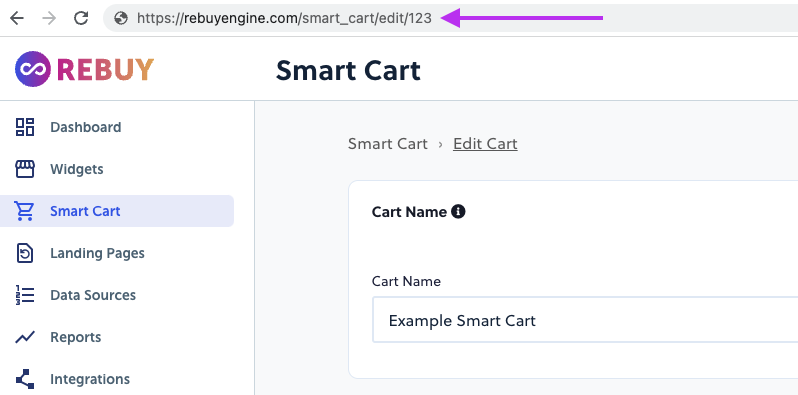
If you're logged into the Rebuy Admin, you can find the Smart Cart ID in the URL for the Smart Cart Edit page:
Enable a Widget
First make sure you create your Widget in Rebuy admin. Adjust your settings to your liking and make sure that the Widget's Live Mode is disabled. This ensures no traffic will see the Widget. Make note of the Widget's ID (the number in the URL when editing widget settings).
In your optimization platform, such as Google Optimize, create your segment and then fire a single JavaScript function with the following contents:
Your experimental segment will now see Widget (withid 55555).
Test a Specific Smart Cart's Switch to Subscription
First make sure you have configured a Smart Cart in the Rebuy admin. Adjust your settings to your liking and ensure that the Switch to Subscription feature is disabled. Remember to save your settings and grab the Smart Cart ID from the URL of the settings page.
In your optimization platform, such as Google Optimize, create your segment and then fire a single JavaScript function with the following contents:
  key: 'smart-cart-123',
  settings: {
    switch_to_subscription: {
        enabled: true
    }
  }
})
Your experimental segment will now see the Switch to Subscription functionality on SmartCart #123!
Change Widget Language & Discount
First make sure you create your Widget in Rebuy admin. Adjust your settings to your liking and make sure that the Widget's Live Mode is enable. This ensures your control group will see the widget with your default settings, which we will override with the experiment below. Make note of the Widget's ID (the number in the URL when editing widget settings).
In your optimization platform, such as Google Optimize, create your segment and then fire a single JavaScript function with the following contents:
--- title: Examples excerpt: '' deprecated: false hidden: false metadata: title: '' description: '' robots: index next: description: '' --- Below are a few example, ranging from simple to more complex, of how Experiments.js can be used to test Smart Cart, Widgets, and/or various settings to help drive more revenue. ## Test a Specific Smart Cart (Legacy) ### Experiment `run` prefix: `smart-cart-` Make sure you have created the target Smart Cart in the Rebuy admin. Adjust your settings to your liking and save them. Make sure you grab the Smart Cart ID from the URL of the settings page. In your optimization platform, such as Google Optimize, create your segment and then fire a single JavaScript function with the following contents: ```javascript title="RebuyExperiments.run('smart-cart-123'); // Legacy Smart Cart prefix: 'smart-cart-'" ``` Your experimental segment will now see Smart Cart 123! ## Test a New Smart Cart ### Experiment `run` prefix: `new-cart-` Make sure you have created the target Smart Cart in the Rebuy admin. Adjust your settings to your liking and save them. Make sure you grab the Smart Cart ID from the URL of the settings page. In your optimization platform, such as Google Optimize, create your segment and then fire a single JavaScript function with the following contents: ```coffeescript title="JavaScript" RebuyExperiments.run('new-cart-456'); // New Smart Cart prefix: 'new-cart-' ``` Your experimental segment will now see Smart Cart 456! !!! warning "All Smart Cart Experiments must include an ID" Since merchants can now have multiple Smart Carts, the Experiments module will now require an **ID** to be passed as part of the key passed to `run()`. `RebuyExperiments.run('smart_cart')` **will no longer work as expected.** You'll want to be sure to update any existing Experiments you may have set up. !!! note "Locating your Smart Cart ID" If you're logged into the Rebuy Admin, you can find the Smart Cart ID in the URL for the Smart Cart Edit page:  ## Enable a Widget First make sure you create your Widget in Rebuy admin. Adjust your settings to your liking and make sure that the Widget's `Live Mode` is disabled. This ensures no traffic will see the Widget. Make note of the Widget's ID (the number in the URL when editing widget settings). In your optimization platform, such as Google Optimize, create your segment and then fire a single JavaScript function with the following contents: ```javascript title="RebuyExperiments.run('55555')" ``` Your experimental segment will now see Widget (with`id` 55555). ## Test a Specific Smart Cart's Switch to Subscription First make sure you have configured a Smart Cart in the Rebuy admin. Adjust your settings to your liking and ensure that the Switch to Subscription feature is **disabled**. Remember to save your settings and grab the Smart Cart ID from the URL of the settings page. In your optimization platform, such as Google Optimize, create your segment and then fire a single JavaScript function with the following contents: ```javascript title="RebuyExperiments.run({" key: 'smart-cart-123', settings: { switch_to_subscription: { enabled: true } } }) ``` Your experimental segment will now see the Switch to Subscription functionality on SmartCart #123! ## Change Widget Language & Discount First make sure you create your Widget in Rebuy admin. Adjust your settings to your liking and make sure that the Widget's `Live Mode` is enable. This ensures your control group will see the widget with your default settings, which we will override with the experiment below. Make note of the Widget's ID (the number in the URL when editing widget settings). In your optimization platform, such as Google Optimize, create your segment and then fire a single JavaScript function with the following contents: ```javascript title="RebuyExperiments.run({" key: '55555', settings: { language: { title: "Limited-Time Offer, Save 20%" }, discount: { type: "percentage", amount: 20 } }) ```